
Track using an external provider
We integrate with all the major yacht tracking providers. This page lists them all and explains how to configure them to update your boat on the noforeignland map.
External tracking sources
Section titled “External tracking sources”Import a GPX track
Section titled “Import a GPX track”Most navigation software allows you to export your track as a GPX file. You can then import it into noforeignland by emailing it to our server where it will be added to your track.
We support GPX files generated by:
- Garmin Navionics Boating
- Raymarine Lighthouse
- Garmin
- OpenCPN
- AquaMaps
- iSailor
- Sailserver
- PredictWind
- Log-Book App
- TIMEZERO Navigation
In order for our server to connect the incoming email to your boat, you must configure your email address in your boat settings:
- Open your boat page on our website.
- Open Boat settings.
- Choose Boat tracking.
- Choose GPX Exports.
- Enter the email address you will be sending the GPX files from.
- Save your changes.
Now, when you export a GPX track from your navigation software and email it to [email protected] it will be added to your journey.
Exporting from Garmin Navionics
Section titled “Exporting from Garmin Navionics”Details on how you export a GPX track will vary from one navigation tool to another. On Navionics Boating, for example, these are the steps you must follow:
- Tap the blue Menu button at the bottom of the screen.
- Select the Tracks option.
- Tap on the track you want to export to show it on the chart.
- Tap the Share button.
- Select Export GPX File.
- Share it using your Email client.
- Send the file to
[email protected].
After your file is processed you will receive an email indicating whether the import was successful or not.
Signal K
Section titled “Signal K”Signal K is an open data standard and platform designed specifically for marine applications, enabling modern, networked communication of boat data across onboard systems, mobile devices, and web applications.
If you are running Signal K on board, it provides a fantastic tracking option. Install the Signal K plugin and it will automatically upload an accurate GPS track to noforeignland whenever it has an internet connection.
The Signal K plugin is maintained by volunteers and is available to download for free.
Sailserver
Section titled “Sailserver”Sailserver manufactures and supplies an NMEA 2000 device that provides you with automatic position logging.
To update your boat position on noforeignland with your Sailserver:
- Open Boat settings.
- Choose Boat details.
- Make sure your MMSI number is correct.
- Save any changes.
- Contact Sailserver support and ask them to forward your boat’s GPX track to noforeignland.
Each time you move your boat, Sailserver will send us a GPX update (with your MMSI number) which we will use to update your boat.
Email us your location
Section titled “Email us your location”An effective way to update your boat position is to email it to us. This is especially useful when sailing offshore without satellite communications. If you can send an email, then you can update your boat position, reassuring friends and family that you are making good progress.
Before sending us your emails, you need to let us know which address you will be sending them from. You can set this up by:
- Open your boat page on our website.
- Open Boat settings.
- Choose Boat tracking.
- Choose Email.
- Enter the email address you will be sending your emails from.
- Save your changes.
You can now send position report emails to [email protected].
The body of the email must contain a single position report in the following format:
LAT|50|39.732|NLON|1|35.514|WIncluding a story
Section titled “Including a story”If you would like to add a story to your journey when emailing a fix, then you can add it after the LAT and LON coordinates. For example, we could extend the message used above to include a simple story:
LAT|50|39.732|NLON|1|35.514|W
The day started with light winds and flat seas.
By lunchtime, the wind had filled in nicely and we were making good progress.----Satellite based trackers
Section titled “Satellite based trackers”Garmin inReach
Section titled “Garmin inReach”To configure your Garmin inReach tracking, you will first need to find your KML data feed URL for Garmin inReach tracking:
- Sign in to your inReach web account using a computer (not a phone) at
explore.garmin.com. - Click the Social tab.
- Click on Feeds (if Feeds does not appear, click ‘MapShare: Off’ and refresh the page).
- Copy the Raw KML Feed URL.
Now that you have your KML URL, you need to:
- Open your boat page on our website.
- Open Boat settings.
- Choose Boat tracking.
- Choose Garmin inReach.
- Enter your KML URL in the form and wait for it to validate.
- Make sure the Garmin tracking switch is in the ON position.
- Save your changes.
Iridium GO!
Section titled “Iridium GO!”By configuring your Iridium GO! to periodically send GPS position reports to noforeignland, you can accurately and reliably update your position on our map from anywhere in the world.
You will need to configure both your Iridium GO! device and your noforeignland account:
- Open your boat page on our website.
- Open Boat settings.
- Choose Boat tracking.
- Choose Iridium phone and GO!.
- Enter your Iridium phone number (usually starts with 88).
- Save your changes.
Then in the settings for your GO! device:
- Sign in to your Iridium GO! app.
- Select SETTINGS → TRACK
- In the section labelled TRACKING RECIPIENT enter this email address:
[email protected]. - Set the TRACKING FREQUENCY to 4 hours.
Now, when turned on, your Iridium GO! will periodically send position reports to our tracking email address. The incoming message’s phone number will be used to identify your boat and a fix will be added to your journey if your boat’s position has changed.
PredictWind + Iridium GO!
Section titled “PredictWind + Iridium GO!”When using your Iridium GO! via PredictWind, you can track your boat’s progress on both the PredictWind and noforeignland maps.
Start by setting up your GO! for PredictWind:
- Follow PredictWind’s instructions to configure tracking on their map.
- Contact PredictWind customer services and ask them to forward your Iridium tracking messages to the noforeignland tracking email address:
[email protected].
Then configure your noforeignland account to handle the incoming tracking messages:
- Open your boat page on our website.
- Open Boat settings.
- Choose Boat tracking.
- Choose Iridium phone and GO!.
- Enter your Iridium phone number (usually starts with 88).
- Save your changes.
PredictWind DataHub
Section titled “PredictWind DataHub”PredictWind’s DataHub records your GPS track and sends it to their servers. To see your DataHub track on noforeignland you need to:
- Follow the instructions in your DataHub manual and configure your tracking with them.
- Contact PredictWind customer services and ask them to forward your DataHub tracking messages to noforeignland.
Then configure your noforeignland account to handle the incoming tracking messages:
- Open your boat page on our website.
- Open Boat settings.
- Choose Boat tracking.
- Choose PredictWind DataHub.
- Enter your DataHub serial number.
- Save your changes.
Satellite Phones
Section titled “Satellite Phones”Iridium satellite phones
Section titled “Iridium satellite phones”If you have an Iridium satellite phone that can send your location, then you can use it to update your position on the noforeignland map.
Refer to your phone’s user manual for how to send an SMS message to an email address, and how to find the Insert Location option. On an Iridium Extreme, for example, it can be found here:
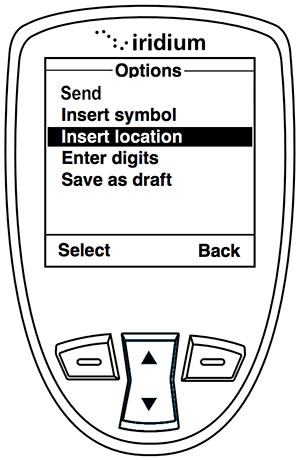
To set up your phone to work with noforeignland, update your boat settings as follows:
- Open Boat settings.
- Choose Boat tracking.
- Choose Iridium phone and GO!.
- Enter your Iridium phone number (usually starts with 88).
- Save your changes.
Now, on your phone use the Insert Location menu to send an SMS message to this email address: [email protected]
Other satellite phones
Section titled “Other satellite phones”If your phone is capable of sending email messages, then you can still update your boat position with it by emailing us your location.
Advanced Tracking
Section titled “Advanced Tracking”Advanced Tracking supplies satellite tracking beacons. They have their own website which can show the location of your beacon on a map and offer integration with noforeignland.
Contact Advanced Tracking customer support and ask them for your API Key and the Asset ID for your beacon. You can then:
- Open Boat settings.
- Choose Boat tracking.
- Choose Advanced Tracking Konectis.
- Enter your API Key and Asset ID and wait for them to be validated.
- Make sure the Advanced Tracking switch is in the ON position.
- Save your changes.
Setting up your SPOT to track your boat position on noforeignland is very easy:
- Open Boat settings.
- Choose Boat tracking.
- Choose SPOT.
- Enter the name for your SPOT where indicated in the form.
- Save your changes.
- In your SPOT device, add
[email protected]to the list of email addresses that will receive your Check In messages.
Now each time you send a Check In message, your boat will be moved to the coordinates in that message.
YB Tracking
Section titled “YB Tracking”We’ve been working with YB to make tracking your boat on the noforeignland map simple.
Contact YB Tracking customer support and ask them to activate the data feed for your tracker. They will send you a data feed URL in an email.
- Open Boat settings.
- Choose Boat tracking.
- Choose YB Tracking.
- Copy and paste the data feed URL from the email into the form and wait for it to validate.
- Make sure the YB Tracking switch is in the ON position.
- Save your changes.
Zoleo is a simple device capable of sending email and SMS messages using the Iridium satellite network, making it suitable for offshore tracking.
As the Zoleo is able to send emails, you can submit position reports and stories for your journey by following the instructions for emailing us your location.
You might also like to read this blog article written by the first boat to track across the Atlantic using Zoleo with noforeignland: