
Customize your boat page
There’s a lot you can do to make your boat page more interesting.
About us
Section titled “About us”The first thing visitors see at the top of your page is the Boat owner’s names, and a short About us section. To update this:
- Open your boat page
- Open Boat settings
- Choose Boat details
- Edit the Boat owners and About us sections
- Save your changes
Add photos, videos & blog links
Section titled “Add photos, videos & blog links”Add rich content to your boat page: you can add photos, YouTube videos and links to your blog articles.
- In the app, tap on the Add content button at the bottom of the screen.
- On the website, look for the Add buttons on the relevant areas of the page.
Set a banner image
Section titled “Set a banner image”Once you’ve added some photos to your boat page, you can select one as your banner image.
- Open your boat page
- Switch to the Photos tab
- Find the image you want to use and tap on its dropdown menu button (three small dots)
- Select Set as banner image
For details on the best dimensions to use and recommendations on layout:
Social media links
Section titled “Social media links”Add links to your social media channels, for example:
- Open your boat page
- Open Boat settings
- Choose Your social media links
- Configure links to the social media platforms you use
- Save your changes
For more detailed instructions with screenshots:
Countries visited flags
Section titled “Countries visited flags”Add flags for the countries you’ve visited like this:
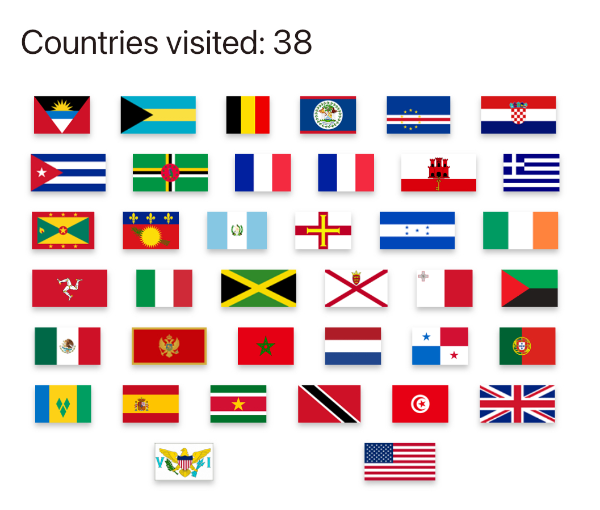
- Open your boat page
- Open Boat settings
- Choose Countries visited
- Add the names of the countries you’ve been to to the list.
- Save your changes
Configure a custom URL
Section titled “Configure a custom URL”To make it easier for others to find you on noforeignland, you can change your boat’s URL on our site from something numerical like this:
https://noforeignland.com/boat/5676073085829120
to something much easier to read and remember like this:
https://noforeignland.com/boat/amalia
- Open your boat page on the website
- Click on SETTINGS → BOAT DETAILS.
- At the bottom of the form, choose the name to be used in your custom URL.
- Wait for the name to be checked for availability and then click the SAVE button.
See this article: